Showing posts with label windows Forensics. Show all posts

Powershell - Collecting information

 Collecting information using powershell

Get information about the make and model of a computer

Get-WmiObject -Class Win32_ComputerSystem


Get information about the BIOS of the current computer

Get-WmiObject -Class Win32_BIOS -ComputerName .


List installed hotfixes (QFEs, or Windows Update files)

Get-WmiObject -Class Win32_QuickFixEngineering -ComputerName .


Get the username of the person currently logged on to a computer

Get-WmiObject -Class Win32_ComputerSystem -Property UserName -ComputerName .


Find just the names of installed applications on the current computer

Get-WmiObject -Class Win32_Product -ComputerName. | Format-Wide -Column 1


Get IP addresses assigned to the current computer

Get-WmiObject -Class Win32_NetworkAdapterConfiguration -Filter IPEnabled=TRUE -ComputerName . | Format-Table -Property IPAddress


Get a more detailed IP configuration report for the current machine

Get-WmiObject -Class Win32_NetworkAdapterConfiguration -Filter IPEnabled=TRUE -ComputerName . | Select-Object -Property [a-z]* -ExcludeProperty IPX*,WINS*


To find network cards with DHCP enabled on the current computer

Get-WmiObject -Class Win32_NetworkAdapterConfiguration -Filter "DHCPEnabled=true" -ComputerName .


Enable DHCP on all network adapters on the current computer

Get-WmiObject -ClassWin32_NetworkAdapterConfiguration -FilterIPEnabled=true -ComputerName . | ForEach-Object -Process {$_.EnableDHCP()}


Navigate the Windows Registry like the file system 

cd hkcu:


Find the five processes using the most memory 

ps | sort –p ws | select –last 5


LocalIR

Utilize for collection of local accounts, processes, services, active connections, USB history, programs and items in DNS cache. It will dump each into a text file for processing and collection in the directory that the script was ran from. Use this script locally on the device

open powershell and run the command. Output will be saved to the folder where u run the powershell


Get-WmiObject -Class Win32_UserAccount -Filter  "LocalAccount='True'"| format-list -property * | out-file accounts.txt

get-process | format-list -property *| out-file process.txt

get-service | format-list -property * | out-file services.txt

netstat -ano | format-list -property * | out-file connections.txt

Get-ItemProperty -ea 0 hklm:\system\currentcontrolset\enum\usbstor\*\* | select FriendlyName,PSChildName | out-file usb.txt

gp -ea 0 HKLM:\SOFTWARE\Wow6432Node\Microsoft\Windows\CurrentVersion\Uninstall\* |Select DisplayName,DisplayVersion,Publisher,InstallDate,InstallLocation | Sort InstallDate -Desc | out-file programs.txt

ipconfig /displaydns | select-string 'Record Name' | out-file dnscache.txt


Read More...

DFIR - Windows Event ID

In an event of a forensic investigation, Windows Event Logs serve as the primary source of evidence as the operating system logs every system activities. Windows Event Log analysis can help an investigator draw a timeline based on the logging information and the discovered artifacts. On Windows systems, event logs contains a lot of useful information about the system and its users.

For a forensic investigator  Security Log is the most important event log.it contains Logon/Logoff activity and other activities related to windows security. 


Location: C:\Windows\System32\winevt\Logs

Tools : Default event viewer or  https://eventlogxp.com/ 


1102 is logged whenever the Security log is cleared

4697 A new service was installed on the system

4688 A new process has been created

EVENT LOG RELATED TO ACCOUNT LOGON/LOGOFF

4624 An account was successfully logged on

4625 An account failed to log on

4634 An account was logged off

4647 User initiated logoff

4648 Logon using Explicit Cred(Run AS)

4672 Privileged account usage

EVENT LOG RELATED TO SCHEDULED TASKS

4698 A scheduled task was created

4699 A scheduled task was deleted

4701 A scheduled task was disabled

4702 A scheduled task was updated


ACCOUNT MANAGEMENT

4720 A user account was created

4722 A user account was enabled

4723 An attempt was made to change an account's password

4724 An attempt was made  to reset an accounts Password

4725 A user account was disabled

4726 A user account was deleted

4728 A member was added to a security-enabled global group

4732 A member was added to a security-enabled local  group

4735 A security-enabled local group was changed

4738 A user account was changed

4740 A user account was locked out

4767 A user account was unlocked

4756 A member was added to a security enabled universal group

4798 A users local group membership was enumerated

4799 A security-enabled local group membership was enumerated

ACCOUNT LOGON

4768 Ticket Granting  was granted(Successful Logon)Kerberos

4769 Successful/Failed account auth (NTLM protocol)

4770 A Kerberos service ticket was renewed

4771 Pre-Authentication Failed (Failed Logon)Kerberos

4776 Successful/Failed account auth (NTLM protocol)


RDP LOGS

4778 RDP Session Reconnected

4779 RDP session Disconnected


EVENT LOG RELATED TO NETWORK SHARE ACCESS

5140 A network share object was accessed 

5142 A network share object was added

5143 A network share object was modified

5144 A network share object was deleted

5145 A network share object was checked to see whether client can be granted desired access 


EVENT LOG RELATED TO SERVICES

7034 Service Crashed Unexpectedly

7035 Service Sent a start/Stop control

7036 Service Started or stopped

7040 Start type changed (Boot | On Request | Disabled)

7045 New service service was installed on the system(win2008R2+)


Logon Type

2 - Interactive [Logon type 2 is logged when a user logs on at the console whether it is domain or a

local user account]

3 - Windows logs logon type 3 for network logons such as accessing shared folders, printers, GPOs, and most logons to IIS. 

4 - For a scheduled task execution in Windows, the Scheduled Task service first creates a new logon session for the task so that it can run under the user account specified for that task. Windows logs this logon attempt as logon type 4

5 - Service (service startup)

7 - This occurs when a user returns to the console and unlocks the password protected screen. Windows treats this as a logon and logs the appropriate Logon/Logoff event using logon type 7 identifying the event as an unlock attempt.

8 - Network Cleartext (Most often indicates a logon to IIS with “basic authentication”)

10 - Logons through Terminal Services, Remote Desktop or Remote Assistance are qualified as remote interactive and logs the logon attempt with logon type 10

11 Logon with cached credentials


Logon Failure Codes

0xC0000064 - User name does not exist

0xC000006A - User name is correct but the password is wrong

0xC0000234 - User is currently locked out

0xC0000072 - Account is currently disabled

0xC000006D - reason not specified (Sub status may provide more information)

0xC000006F - User tried to logon outside his day of week or time of day restrictions

0xC0000070 - Workstation restriction

0xC00000193 - Account expiration

0xC0000071 - Expired password

0xC0000133 - Clocks between DC and other computer too far out of sync

0xC0000224 - User is required to change password at next logon

0xC0000225 -  Evidently a bug in Windows and not a risk

0xC000015b The user has not been granted the requested logon type (aka logon right) at this machine

KERBEROS FAILURE CODES

0x6 Bad user name

0x7 New computer account?

0x9 Administrator should reset password

0xC Workstation restriction

0x12 Account disabled, expired, locked out,logon hours restriction

0x17 The user’s password has expired

0x18 Bad password

0x20 Frequently logged by computer accounts

0x25 Workstation’s clock too far out of sync with the DC’s


Read More...

Windows Forensics Tools : Densityscout

DensityScout is a tool used for finding (possibly unknown) malware on a potentially infected system. it takes advantage of the typical approach of malware authors to protect their "products" with obfuscation like run-time-packing and -encryption. This tool can be used to scan a desired file-system-path by calculating the density of each file to finally print out an accordingly descending list. Usually most Microsoft Windows executables are not packed or encrypted in any way which throws the hits of malicious executables to the top of the list where one can easily focus on.

Website : https://www.cert.at/en/downloads/software/software-densityscout

How to Use


1. Download software from website : https://www.cert.at/media/files/downloads/software/densityscout/files/densityscout_build_45_windows.zip

2. Unzip the folder

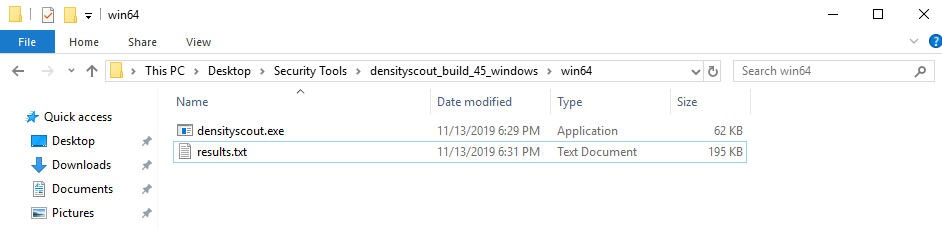
3. Go to the folder directory where you unzip the files

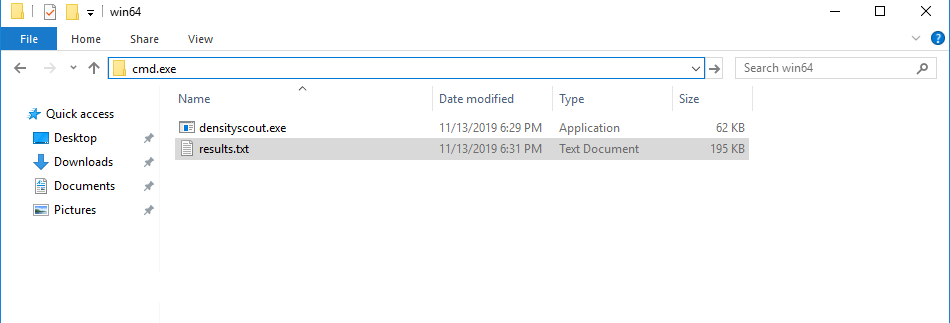
4. Type cmd.exe on the explorer like below and click enter.


5. Type the command on the cmd promt
densityscout -pe -p 0.1 -o results.txt c:\Windows\System32
Using the above command you can scan system32 folder for any "suspicious" file


Output on the cmd promt


Densityscout scan the directory and give you the full result in text file in the folder and show the files which is less than the given density on the command prompt itself


5. You can scan the files using https://www.virustotal.com to check any malicious activity


Read More...